Welcome To - MaCHAcK

Showing posts with label Vista Paradise. Show all posts

Turning On or Off features like IIS, MSMQ and Print Services

Author: P.R.O.V.I.D.E.R. // Category:
Recently I configured IIS on my Windows Vista Operating System. I first tried following the Windows XP process of going to Start-->Settings-->Control Panel-->Add Remove Program, but at last wondered to see all new user interfaces.

As there are many changes in the user interface I took almost 10 minutes to identify the control panel application which allows me turn on or off windows features like IIS, MSMQ, Printer Services, Indexing Services, etc.

I wanted to share how to locate the program which allows you to turn on or off windows applications with you people as it might be helpful to you

1. Select Control Panel from your Start Menu
2. Local the icon Programs in the Control Panel and click on Programs
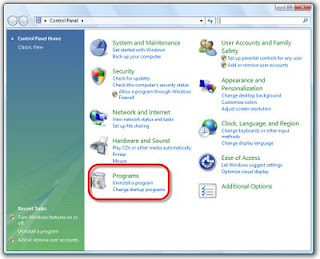

3. Click on Turn Windows features on or off link

4. The Turn Windows features on or off application allows you to configure the applications like IIS, MSMQ, Printer Server
Displaying a Custom Interactive Logon Message

Author: P.R.O.V.I.D.E.R. // Category:

Displaying a custom interactive logon message on Windows Vista is very simple. The Local Security Policies of Vista operating system has options that allows you to create a message text that will appear when a user attempts to login to the system. You may use this option to display usage policy message in your office or any other shared computers.

Follow these simple steps to configure a custom interactive logon message

  1. Click on start menu
  2. Then select All Programs -->Administrative Tools --> Local Security Policy( alternatively type Local Security Policy in the search bar available in start menu and select the application)
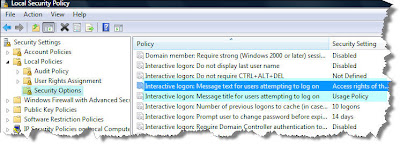
  3. In the left side panel navigate to Security Settings-->Local Policies-->Security Options.
  4. In the details panel of right side locate & open Interactive logon:Message title for users attempting to logon and enter title of the custom logon message
  5. In the details panel of right side locate & open Interactive logon:Message text for users attempting to logon and enter text of the custom logon message
  6. Now logoff your windows session to view how the custom message is displayed.

Windows Vista Trick - Configuring a custom logon message

Capture Screens Using Built in Windows Vista's Application - Snipping Tool

Author: P.R.O.V.I.D.E.R. // Category:

Microsoft Windows Vista comes with a built in application called Snipping Tool to capture screens. The Snipping Tool allows you to capture a screen shot of any object on your screen and then annotate, save, or share the image through e-mails.

The application can be launched by selecting Start Menu-->All Programs-->Accessories-->Snipping Tool. User interface of the application is very simple and elegant with handy options to capture different display areas of the screen easily.

You can use a mouse or tablet pen to capture full screen, window, required rectangular section or even a custom shape. After you capture the image it is automatically copied to an edit window where you can annotate, save or share the image. The edit windows provides Highlighter and Pen options to highlight an area and to write on or around the image.

This application has a decent functionality which helps small bloggers and technical document writers to capture simple screen shots with out spending money for purchasing third party applications like SnapIt and FastStone Capture.


Unable to find out Run command in Vista? Here is a quick fix for this important option.

Author: P.R.O.V.I.D.E.R. // Category:
By default, windows vista doesn't have the Run command on the start menu.You can restore that to your Windows Vista Start menu with the simple step-by-step instructions. Just right-click your Start menu and click Properties.

Then with the Start menu tab active, click the Customize button located in the top right, and tick the checkbox next to Run command.

Your command will now appear in the lower-right corner of the Start menu.Then again, you can always get to the Run prompt with the useful Windows-R keyboard shortcut.

Turbo Charge Your Windows Vista Start Menu Search Feature

Author: P.R.O.V.I.D.E.R. // Category:
One of my favourite features in Microsoft Windows Vista is the new Start menu interface. The excellent search feature of Vista Start menu allows users to easily find required programs by just start typing the first few letters.

That said, concerns about this feature is performance. Certain times when the letters which we typed in the search box does not match with any application or document names, Vista takes long time to tell no items match your search.

This is because of the default behaviour which additionally searches documents, emails and other network places when program names does not match with the input letters.

To make this search feature work better and display results very fast, you can have Vista only search your programs.

  1. Right-click the Start Menu and select Properties
  2. Select "Start Menu" and click Customize...
  3. Scroll to the bottom and locate Search related options.
  4. Unselect "Search communications", "Search favorites and history", and under "Search files", select "Don't search for files". Make sure "Search programs" is selected.
  5. Click OK twice to save the settings and exit the properties window.

Now trying searching in Start menu and feel the difference. You will definitely appreciate more peformant Start Menu search now.

Restore Accidentally Deleted Recycle Bin Icon From Desktop

Author: P.R.O.V.I.D.E.R. // Category:
Problem


When you are deleting unnecessary images, documents and shortcuts placed on the desktop, you deleted Recycle Bin icon by mistake. Now you want to restore the accidentally deleted Recycle Bin icon on to the desktop.

Solution

Follow these steps to restore Recycle Bin icon on to Desktop

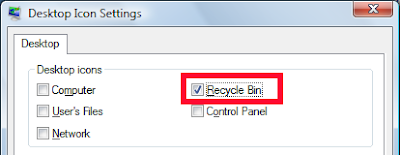
  1. Right click on empty area of Desktop and choose the option Personalize; display Personalize appearance and sounds window

  1. Choose the option Change desktop icons available under Tasks in the top left side of display window; displays Desktop icon settings window

  1. Select the check box Recycle Bin
  1. Click on Ok to save the settings
  2. Return to your Desktop to see the restore

"Copy As Path" - The Hidden Windows Vista Option To Copy Full File Path

Author: P.R.O.V.I.D.E.R. // Category:
Windows Vista has a nice little hidden feature which allows us to copy full file path to clipboard. If you hold Shift Key and right click on a selected file, a new option appears in the context menu with name "Copy as Path".This option copies the full path of the selected file to clipboard.


This hidden feature comes very handy option when you want to copy and paste network file paths in emails and other documents. Can you guess why is this feature hidden in Vista?