Welcome To - MaCHAcK

Restore Accidentally Deleted Recycle Bin Icon From Desktop

Author: P.R.O.V.I.D.E.R. // Category:
Problem


When you are deleting unnecessary images, documents and shortcuts placed on the desktop, you deleted Recycle Bin icon by mistake. Now you want to restore the accidentally deleted Recycle Bin icon on to the desktop.

Solution

Follow these steps to restore Recycle Bin icon on to Desktop

  1. Right click on empty area of Desktop and choose the option Personalize; display Personalize appearance and sounds window

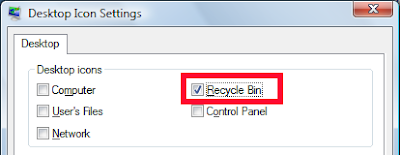
  1. Choose the option Change desktop icons available under Tasks in the top left side of display window; displays Desktop icon settings window

  1. Select the check box Recycle Bin
  1. Click on Ok to save the settings
  2. Return to your Desktop to see the restore

"Copy As Path" - The Hidden Windows Vista Option To Copy Full File Path

Author: P.R.O.V.I.D.E.R. // Category:
Windows Vista has a nice little hidden feature which allows us to copy full file path to clipboard. If you hold Shift Key and right click on a selected file, a new option appears in the context menu with name "Copy as Path".This option copies the full path of the selected file to clipboard.


This hidden feature comes very handy option when you want to copy and paste network file paths in emails and other documents. Can you guess why is this feature hidden in Vista?

Opening a New Tab Page With Double Click Of a Mouse Pointer

Author: P.R.O.V.I.D.E.R. // Category:
Recently we learned a tip in Firefox to open a new tab page with a single double click of mouse.

All you need to do to open a new tab page is double click on the empty area next to an existing tab page.


Also it is possible to open a new tab page with keyboard shortcut CTRL + T (Windows)

Configure Firefox to Forget Browser History Immediately After Closing It

Author: P.R.O.V.I.D.E.R. // Category:
Problem: Your are browsing your favourite web sites at office without the knowledge of your manager. One day your manage want to browse and show a web site related to work on your computer. The moment he starts typing first few characters of the web site, your Firefox browser reveals history of the websites which you visit. How to avoid such embarrassing situations by clearing the browser history automatically after closing the application?


Solution

Firefox has an useful option which automatically clears the web browser history as soon as you close the application. To enable this auto clear option

  • Select Tools-->Options--Privacy
  • Choose the option Always clear my private data when I close Firefox
  • Clear the option Ask me before clearing private
  • Click Ok to save the settings

Hold CTRL Key To Open a Link in New Tab Page

Author: P.R.O.V.I.D.E.R. // Category:

Here is a handy tip to enhance your web experience with Firefox web browser.

While browsing a web page in Firefox, if you want to open a link in a new tab page just hold the CTRL(control) key and click on the link. The link opens up as a new tab page.

This is a very handy shortcut to the traditional way of right clicking on a link and then selecting Open Link in New Tab